Reporting Advanced
The Reporting Advanced menu allows you to create comprehensive reports.
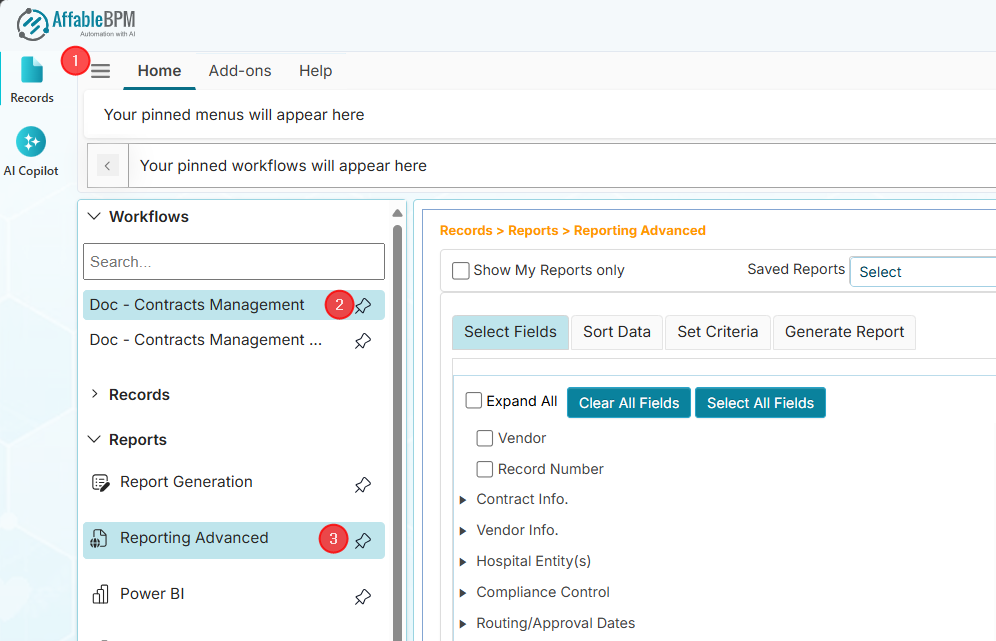
Show My Reports Only
The Show My Reports Only checkbox will filter all your saved reports. When unticked, you can see all other reports created by other users.
Saved Reports
The Saved Reports dropdown box allows you to select a previously defined report. Selecting a Saved Report saves you time redefining the report based on selected fields and filter conditions.
Running a saved report will always get the latest data from the workflow.
Select Fields Tab
The Select Fields tab allows you to select the fields to include in the report.
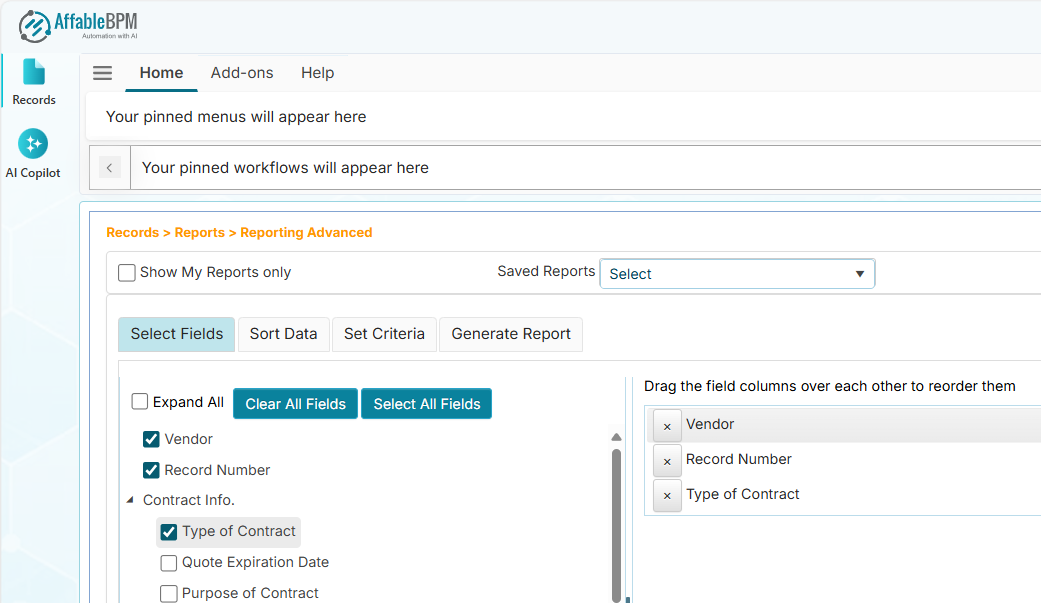
- The Expand All checkbox will collapse or expand the parent nodes such as tabs.
- The Select All Fields button allows you to include all fields in the report. The right side allows you to order the column placement of the fields in the repor. You can drag the field above or below the other fields to reorder them.
- The Clear All Fields button deselects all fields.
Sort Data Tab
The Sort Data tab allows you to sort the report based on field order. Each selected field appears on the right side to give you options how to sort the fields such as ascending (ASC), descending (DESC ), or UNSORTED.
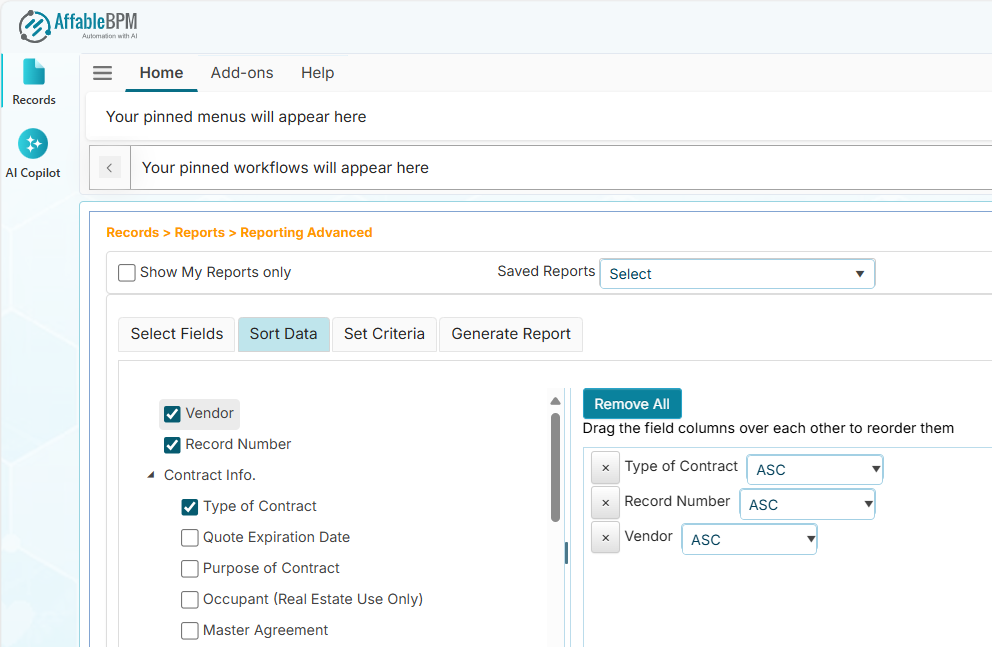
Set Criteria Tab
The Set Criteria tab allows you to specify more conditions how to filter records.
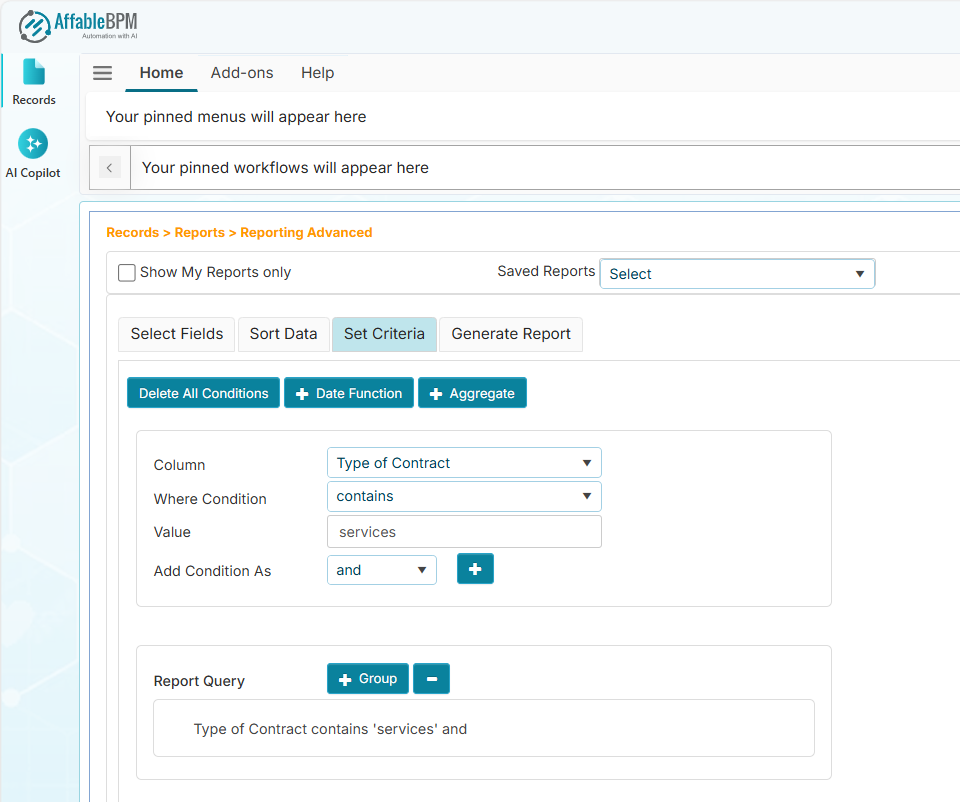
Set Criteria Tab Options:
- Column dropdown: Allows you to select which fields will have a criterion.
- Where Condition dropdown: Allows you to select what condition will apply to the selected field.
- Value textbox: Allows you to enter specific value to filter the records.
- Add as dropdown: Allows you to combine the criteria using the AND or OR operator.
- "+" button: Allows you to add the specified filter in the Report Query statement below.
- Report Query: Allows you to preview the query statement that will be used to generate the report.
How to Use the Filter Criteria
Use Case: List all records where the Record Status is Active.
-
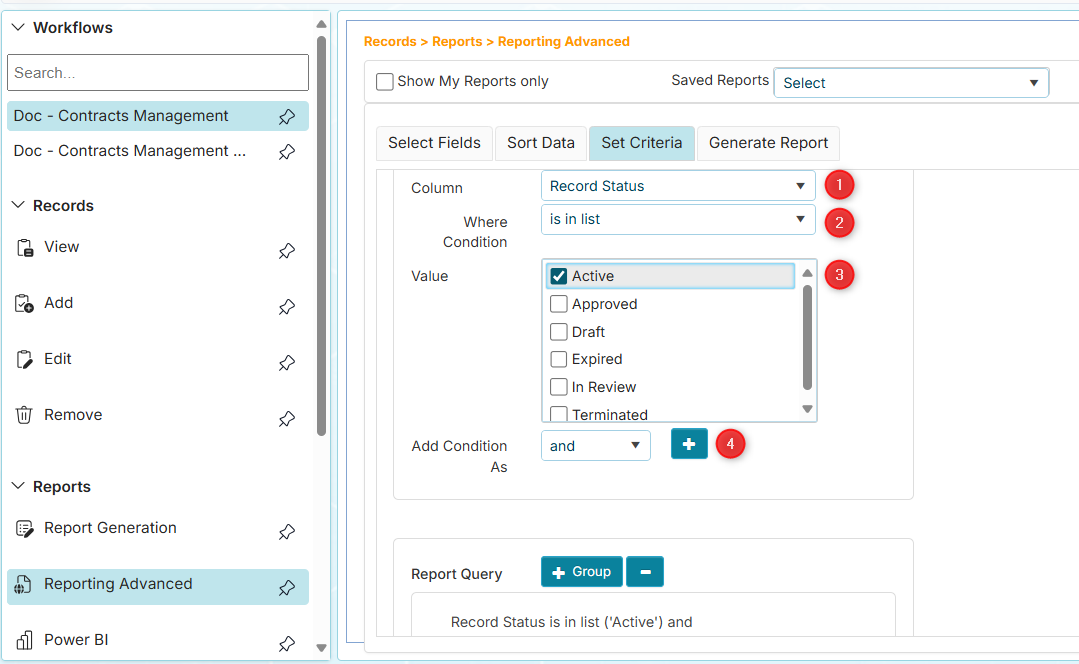
In the Column dropdown, find the Record Status field.
-
In the Where Condition dropdown, choose is in list.
-
In the Value checkboxes, tick Active
-
Click the add [ + ] button to add the filter condition in the report query. The report query statement panel below should now have Record Status is in list ('Active').
-
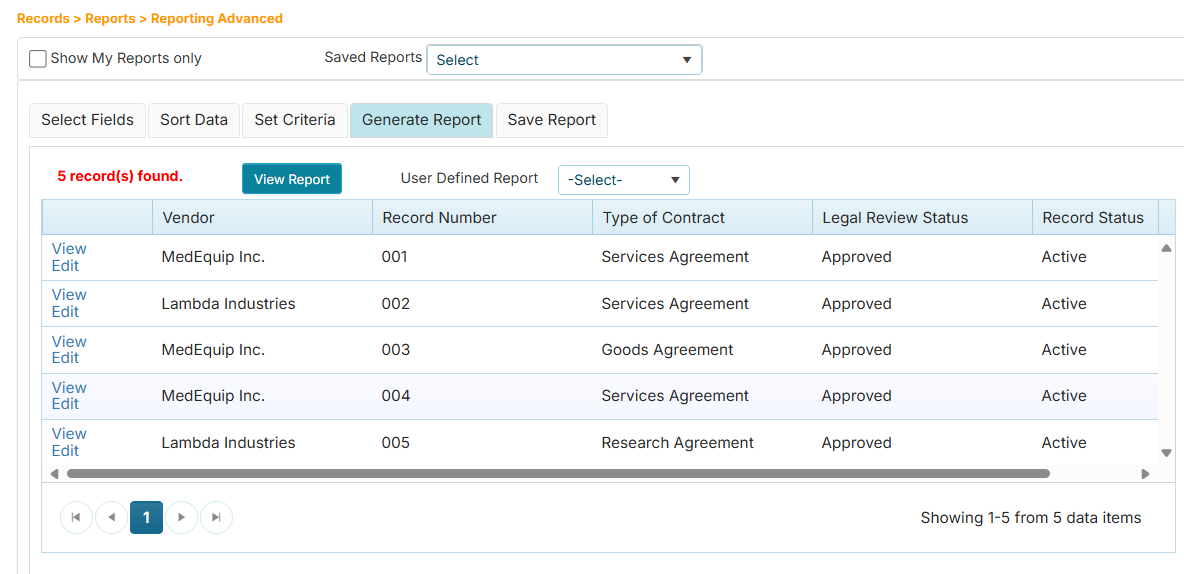
Click Generate Report tab.
How to Add a Group Query
The Group button allows you to filter records based on a group condition.
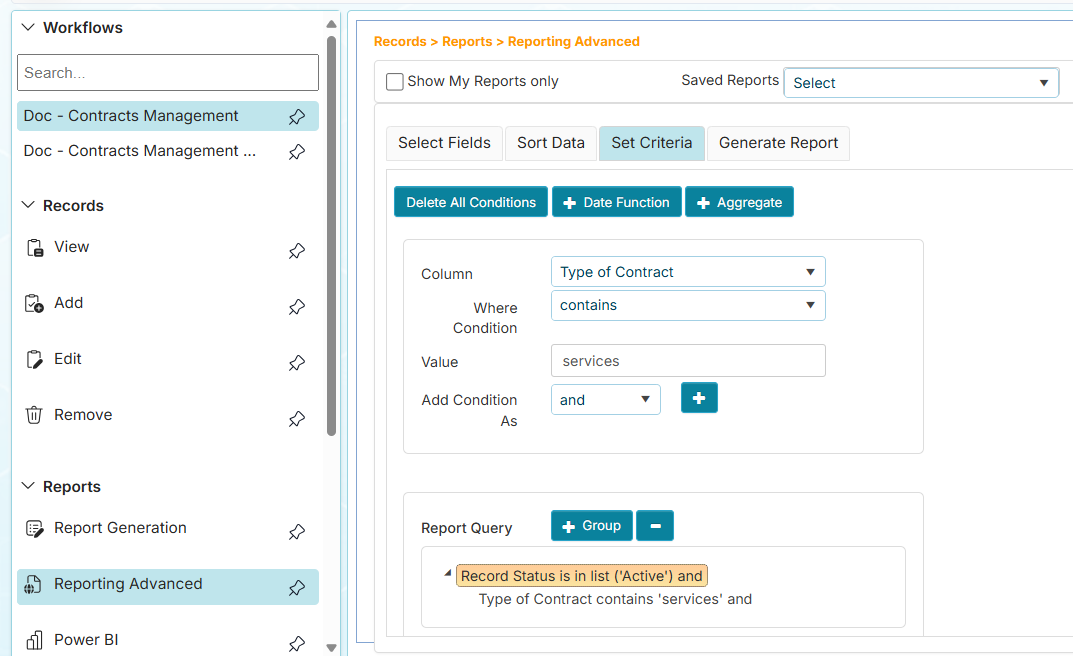
- Add at least one filter condition.
- Set another filter condition but do not click the [ + ] add button.
- Click the + Group button. The second condition will become a subfilter of the first condition.
- Click Generate Report tab.
Generate Report Tab
The Generate Repport tab executes your specified report settings such as sort order or filter criteria.
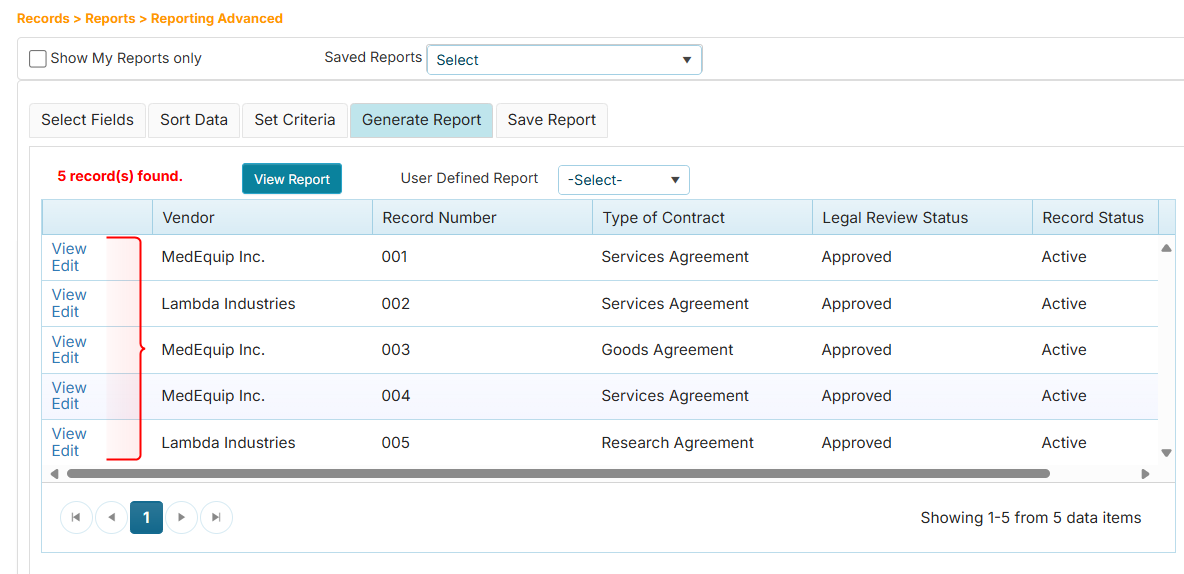
The first column of the extracted rows will show a link that allows you to view or edit the record. The report can be printed using a custom report layout template or the default layout.
The User Defined Report template can be configured by the Manager or Administrator.