How to Add a Record
-
From the sidebar tab, click the Records menu.
-
Click the Workflows section menu to find your assigned workflow.
-
In the Records section menu, click the Add menu.
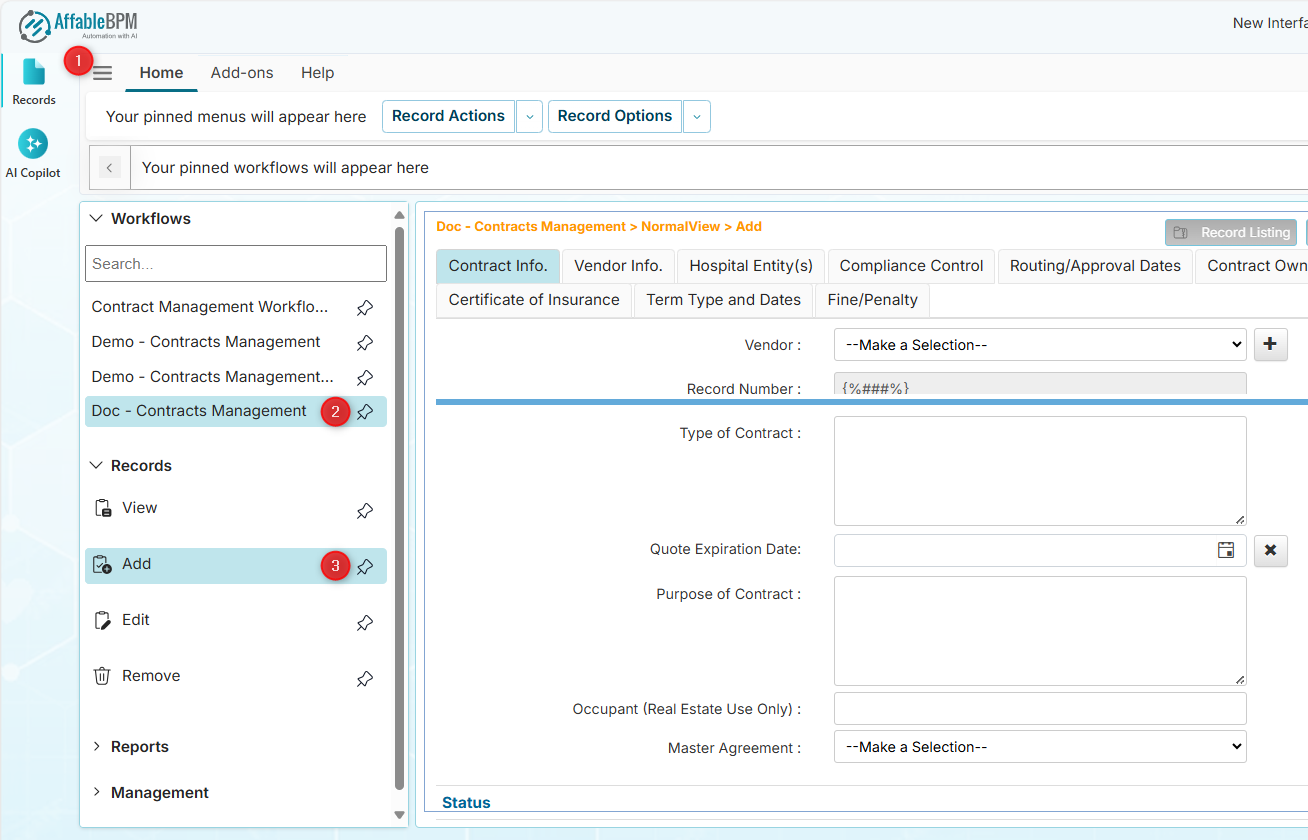
A blank data entry form will appear.
info- The form may have default values when configured.
- Some fields can be read-only, such as system-generated record numbers or IDs.
- Some fields (Recurring Entries) will not be available unless the record is saved.
- The File Manager is not available in Add mode, and the Record Options menus are disabled.
-
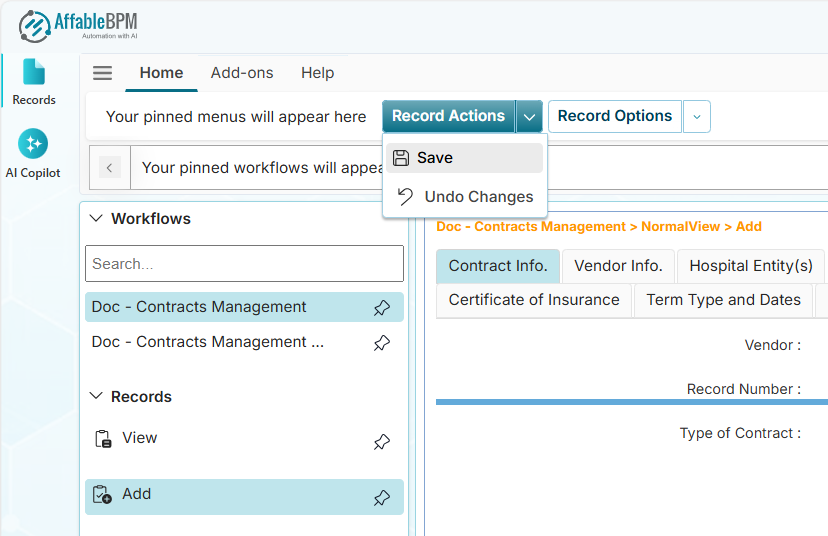
After entering the values, save the record by clicking the Save option from the Record Actions dropdown or the Save button on the page.