User Interface
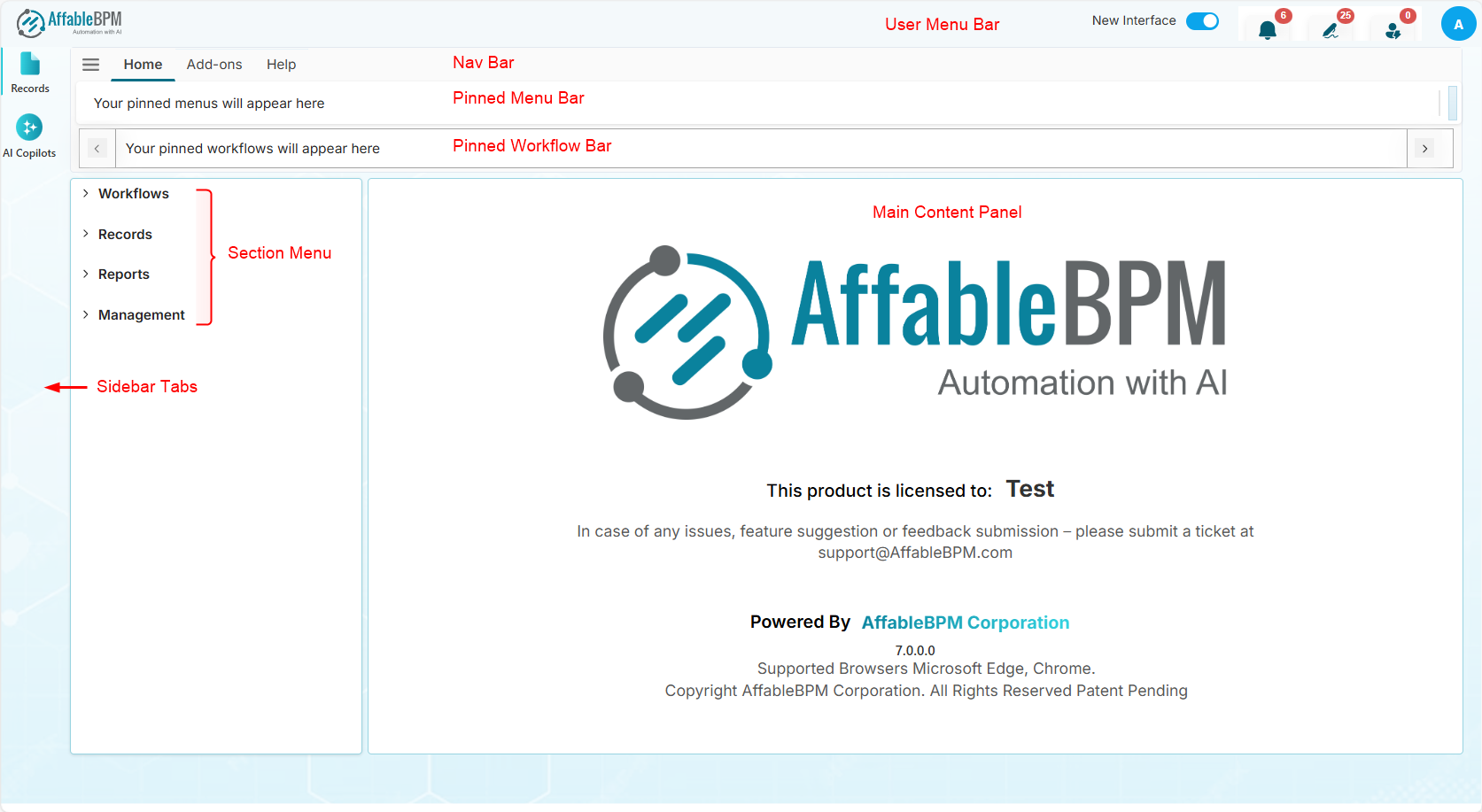
The AffableBPM interface has several key components (or parts) that help you navigate and work efficiently.
Nav Bar
The Nav Bar is located at the top of the screen and provides access to global functions. It includes:
- Hamburger Menu - Show or hide the Section Menu to expand your workspace.
- Home - Returns you to the main dashboard
- Add-ons - Access additional features and extensions
- Help - Access documentation and support resources
Sidebar Tabs
The Sidebar Tabs are located on the left side of the screen and serve as the main navigation for different modules. Click on a tab to access its associated sections:
- Records - Manage your records, workflows, and data
- AI Copilots - Access AI-powered automation tools
Section Menu
The Section Menu appears below the active Sidebar Tab and displays collapsible sections relevant to the selected module. For example, when the Records tab is selected, you can access:
- Workflows - Lists your assigned workflows that you can manage.
- Records - View, add, edit, or remove records.
- Reports - Generate user-defined reports, access dashboards, and view saved reports.
- Management - View and manage checked-out documents. Check in modified documents or undo check-outs to release document locks.
Each section expands to show additional options when clicked.
Pinned Menu Bar
The Pinned Menu Bar provides quick access to your frequently used menus. Pin your most-used menu items here for faster navigation without having to browse through sections.
Pinned Workflow Bar
The Pinned Workflow Bar allows you to pin frequently used workflows for quick access. This helps you launch common workflows with a single click.
Main Content Panel
The Main Content Panel is the central workspace where information and forms are displayed. The content updates dynamically based on what you select from the Section Menu or Pinned Bars.
User Menu Bar
The User Menu Bar is located in the top-right corner and provides access to:
- New Interface Toggle Switch - Switch between the new interface and the classic view. This toggle helps you transition smoothly to the updated design while maintaining access to the familiar layout.
- Notifications - View routing notifications for records requiring review, documents to be signed, and system alerts.
- Logout - Sign out from the system securely.
- Change Password - Update your account password for security purposes.