Notification
Learn how to manage routing notifications and assign delegates who can handle approvals on your behalf.
Routing Inbox
The Routing Inbox is located in the top right corner of your screen in the user menu bar. It displays in-app notifications for:
- Routed records requiring your approval
- eSignature requests
- Delegate assignments

Pending Approvals
The Pending Approvals section lists all records routed to you that require your action. Records appear in chronological order by creation date, with high-priority items marked in red for quick identification. You can learn more about routing through the Record Options dropdown and Route Settings menu.
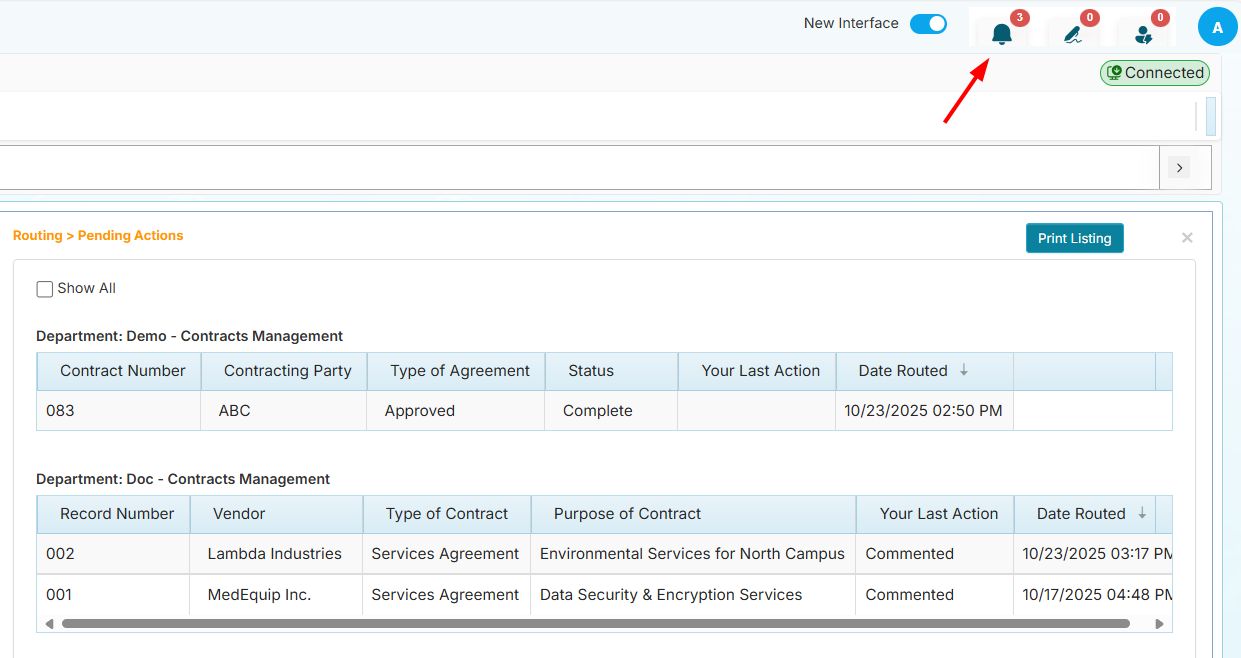
How to Review and Approve Routes
To take action on a pending route:
-
Click on any record in your Pending Approvals list
-
The record will open in a new view for you to review the details
-
A window will appear with these options:
- Approve Route - Accept and approve the routed record
- Disapprove Route - Reject the routed record
- Save Comment - Add comments or notes without making a decision yet
- Save Draft - Create a draft response that you can finalize and submit later
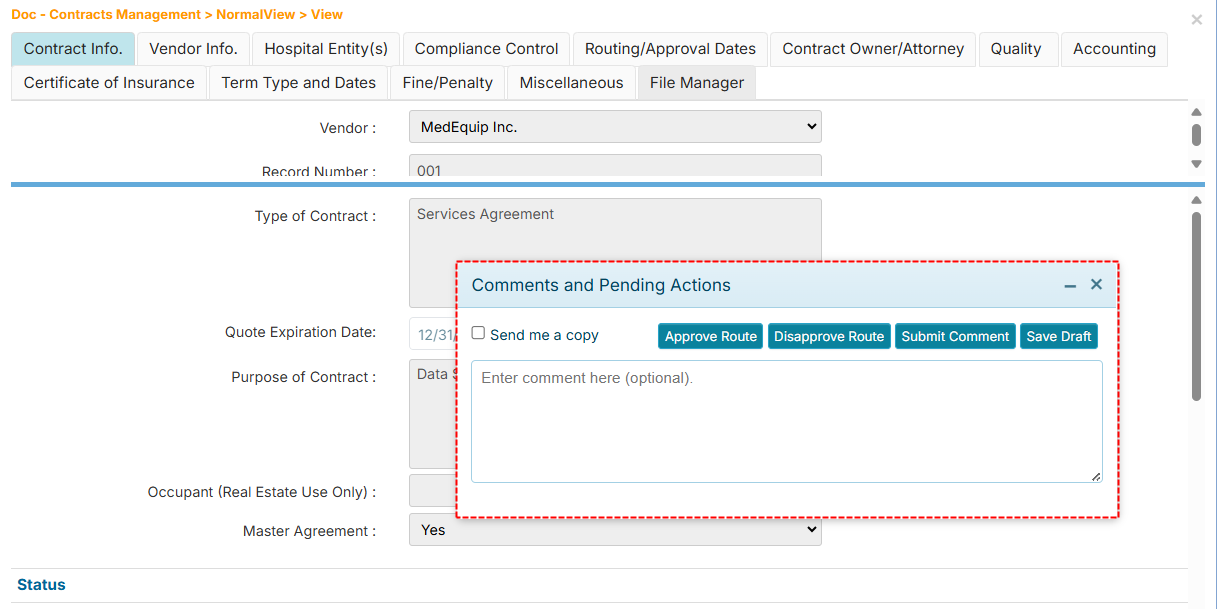
You can save comments at any time during your review process. This is helpful when you need more information before making a final decision.
Assign Delegates
Delegates are trusted users who can view and act on your pending routes when you're unavailable. This ensures your workflows continue moving forward even when you're out of the office or busy with other tasks.
How to Assign Delegates
To give other users access to your pending routes:
-
Navigate to the Assign Delegates section from your user menu
-
Select the users you want to designate as your delegates
-
Optional but recommended: Check the box for Send copy of e-mails to delegates so your delegates receive email notifications whenever routing actions occur
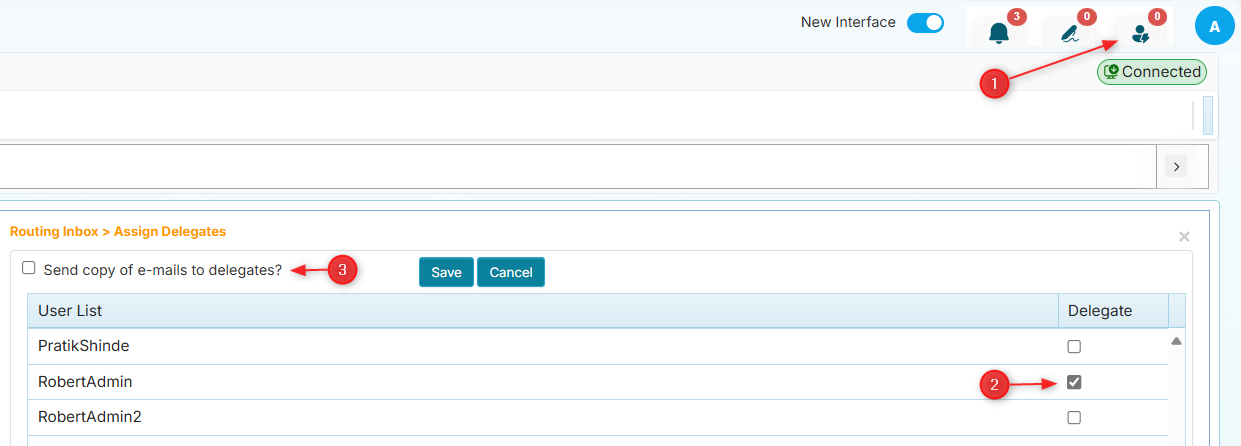
Enable email notifications for your delegates to ensure they're immediately aware of pending routes that need attention.
How Delegates View Your Routes
Once you've assigned someone as your delegate, here's how they access your pending routes:
- The delegate logs into their account
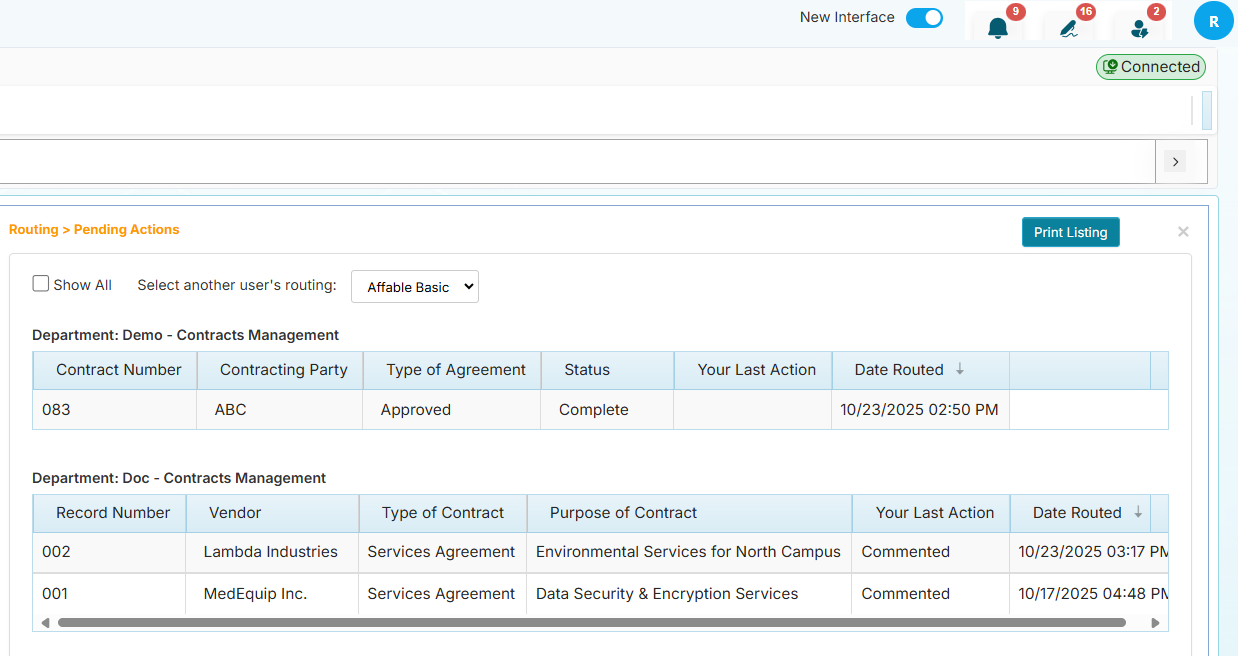
- They navigate to their Pending Approvals page
- A dropdown menu labeled Select another user's routing appears at the top
- They click the dropdown and select your name from the list of users who have designated them as a delegate
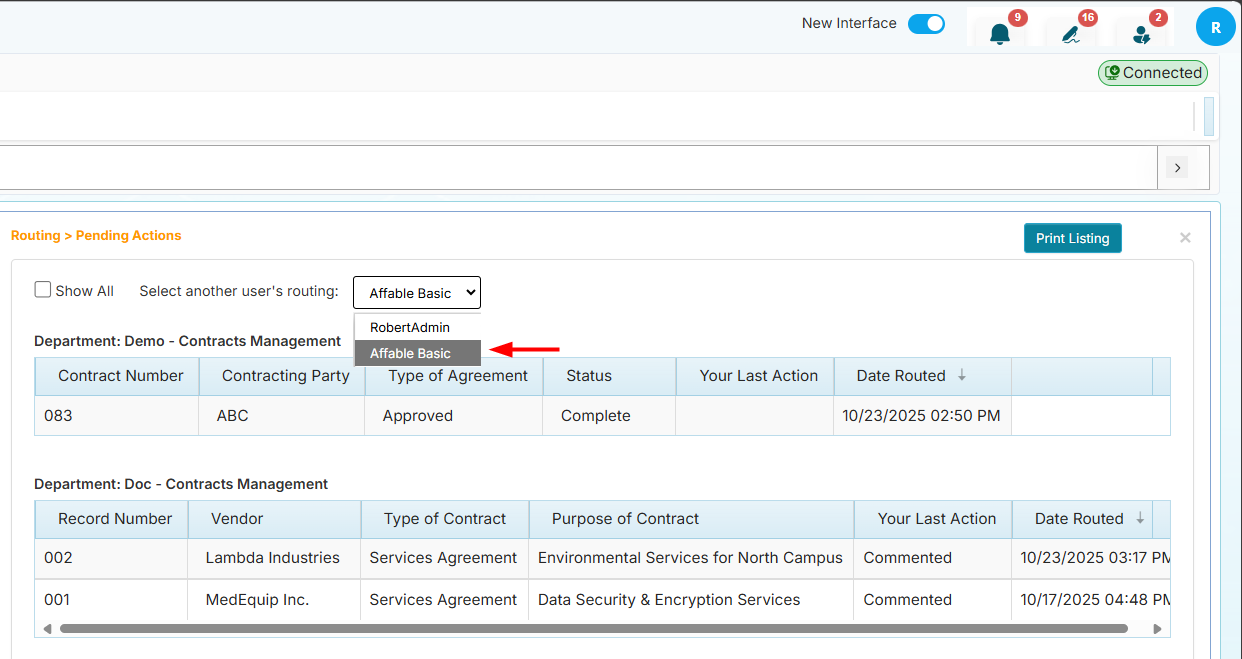
After selecting your name, they'll see all your pending routes and can take action on them just as you would.
Delegates can approve, disapprove, and comment on routes on your behalf. Only assign delegates you trust to make these decisions.
Common Questions
Q: Can I assign multiple delegates? Yes, you can assign as many delegates as needed. All assigned delegates will have access to your pending routes.
Q: Will I be notified when a delegate takes action? Yes, you'll receive notifications for all routing actions, including those taken by your delegates.
Q: Can delegates see each other's actions? Yes, all comments and actions are visible in the routing history, regardless of who performed them.
Q: What's the difference between Save Comment and Save Draft? Save Comment adds your notes to the record immediately, while Save Draft creates a response you can edit and finalize before submitting your final decision.