Scanning Documents (Scan to PDF)
The application allows you to scan physical documents and convert them into PDF files. If the OCR feature is enabled in your organization, the PDF is automatically processed with OCR and made searchable in the record listing.
The Interface Software must be installed. See Installing the Interface Software.
How to Scan Documents
-
Click the Records tab.
-
In the Workflows dropdown, select your workflow.
-
From the Records menu, select the Edit option.
-
Click the record where you want to store the scanned document.
-
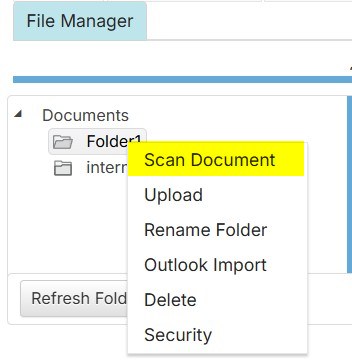
Open the File Manager and select the folder where you want to upload the scanned document.
-
Right-click the folder and choose Scan Document. The AffableBPM Scan interface will display all available scan devices attached to your computer.
-
In the Select Source dropdown, choose your scan device.

-
Click the Scan button. Depending on your scan device, you may be able to preview pages before scanning or scan them directly.
-
Scan each page of your document.
-
Once scanning is complete, click the text box next to the Scan button and enter a filename for your scanned document (no file extension needed).
-
Click the Upload button. The scanned images will be converted to PDF and uploaded to the selected folder.