Record Defaults
Introduction
The Record Defaults menu allows you to manage the default values and folders for new records in a workflow repository.
You will learn:
- How to Set the Default Values of a New Record
- How to Add a Default Folder
- How to Rename a Default Folder
- How to Delete a Default Folder
How to Set the Default Values of a New Record
-
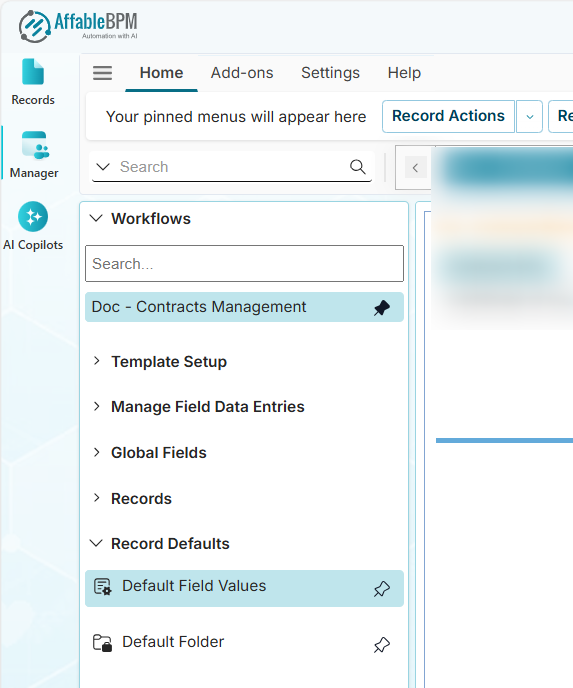
From the Manager sidebar tab, click Record Defaults.
-
Click the Default Field Values menu.
-
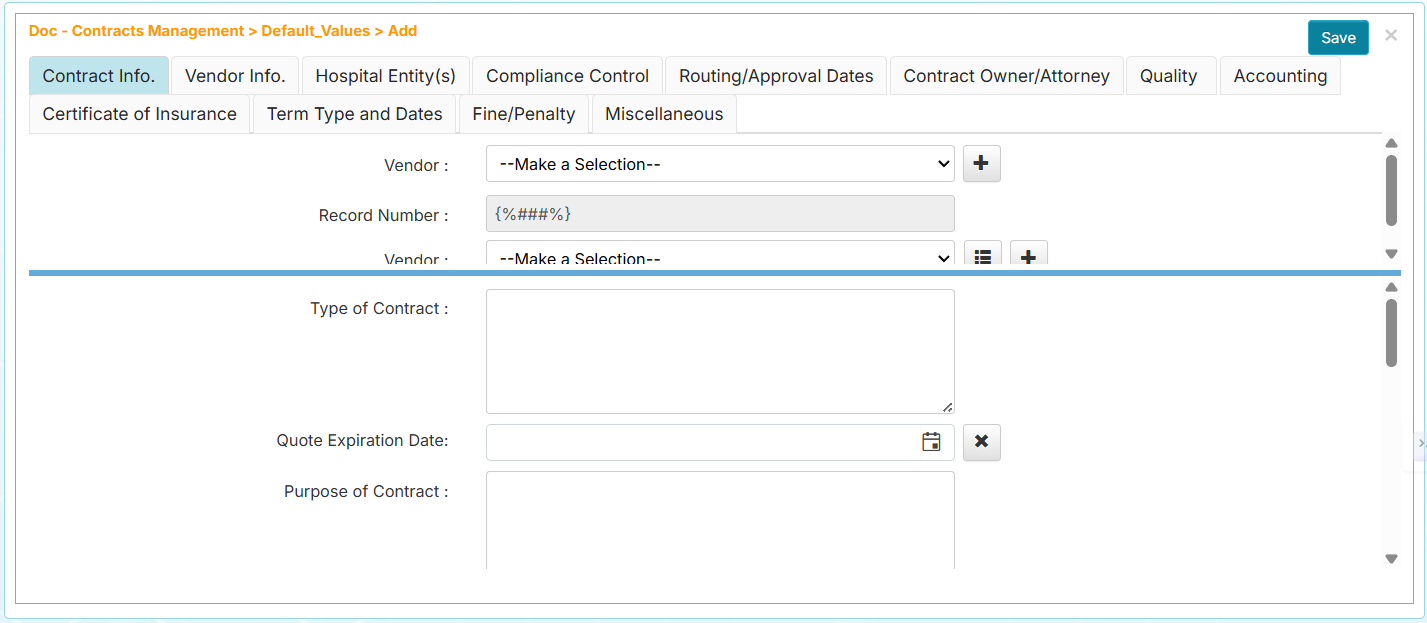
Expand the Workflows menu and click your assigned workflow. The default values form will appear as shown below.
-
Enter the default values for a new record, then click Save.
Every time a new record is added, the default values will prepopulate the record.
How to Add a Default Folder
The Default Folders menu allows you to set up folders that will be automatically created for each new record.
-
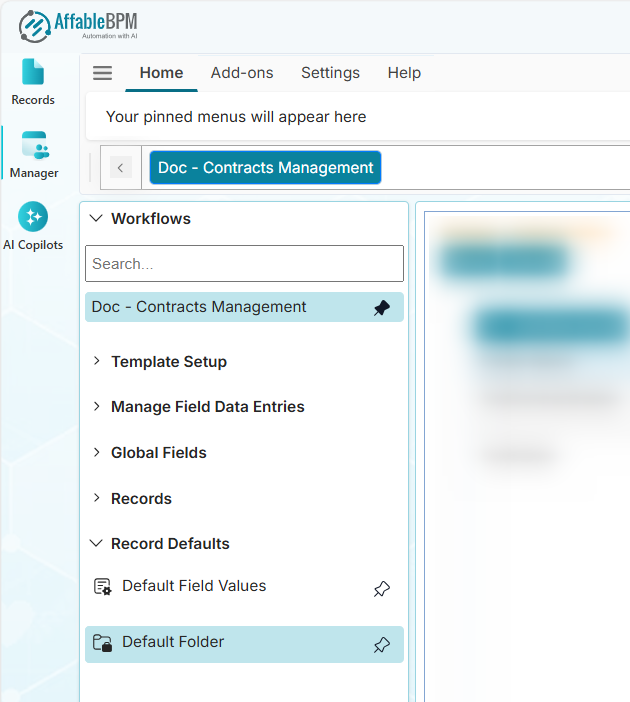
From the Manager sidebar tab, click Record Defaults.
-
Click the Default Folder menu.
-
Expand the Workflows menu and click your assigned workflow. The Default Folder page will list all default folder names.
-
Click Add New Folder. A new row will be added for entry of a new folder name.
-
Enter the new folder name, then click Update.
-
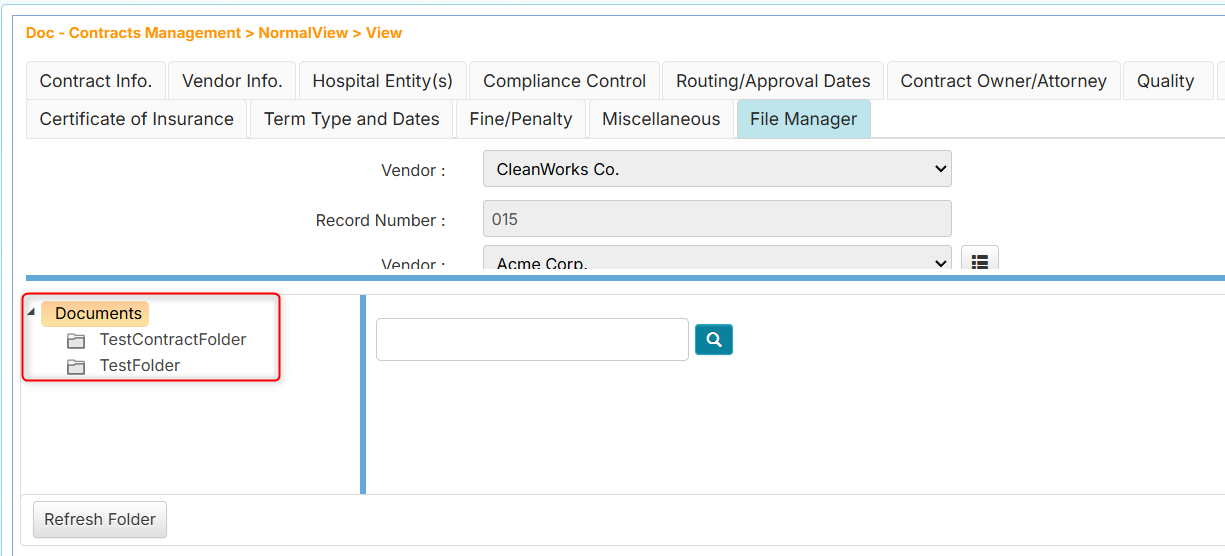
Click Save to finalize the new default folder. When a new record is created, the File Manager tab will display the default folders as shown below.
How to Rename a Default Folder
- From the Manager sidebar tab, click Record Defaults.
- Click the Default Folder menu.
- Expand the Workflows menu and click your assigned workflow. The Default Folder page will list all default folder names.
- Locate the folder, then click Update. The folder name will become editable.
- Replace the folder name with a new name, then click Update again.
- Click Save to finalize the changes.
Renaming a default folder will not rename the existing folders in existing records.
How to Delete a Default Folder
- From the Manager sidebar tab, click Record Defaults.
- Click the Default Folder menu.
- Expand the Workflows menu and click your assigned workflow. The Default Folder page will list all default folder names.
- Locate the folder to delete, then click Delete. A confirmation dialog will appear.
- Click OK to remove the default folder, or click Cancel to abort.
- Click Save to finalize the changes.
Deleting a default folder will not delete the existing folders in existing records.